
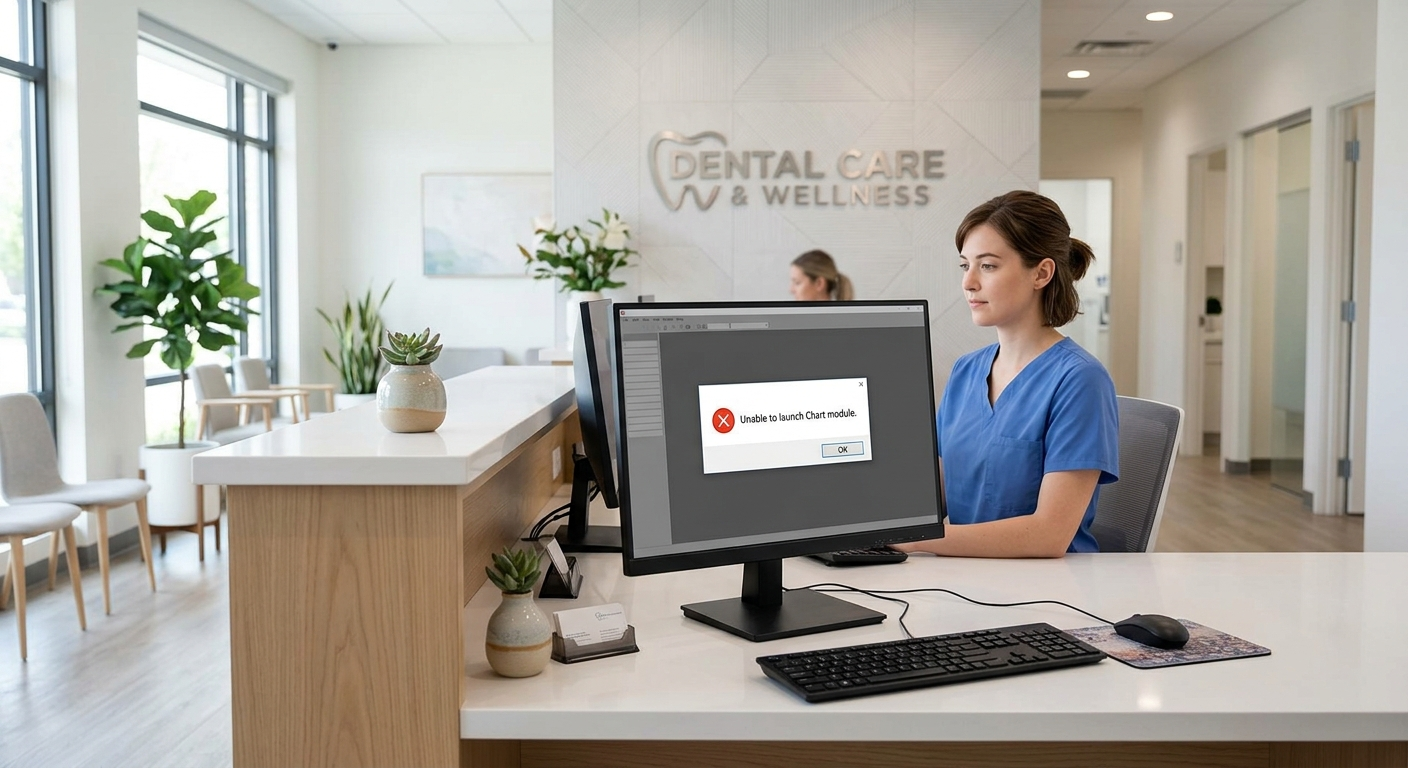
What the error means
Dentrix is made up of modules, such as the Appointment Book, Family File, Ledger and Chart, that open as separate programs from the Dentrix toolbar or desktop icons. The Chart module loads its own program files and settings on each workstation, then connects to the Dentrix database on the server. If any of those pieces fails, Dentrix reports that Chart could not be launched.Likely causes
- Damaged Chart settings on the workstation, often after a crash or forced shutdown while Chart was open.
- An incomplete or mismatched update, where the workstation’s Dentrix files do not match the server’s version.
- Lost connection to the Dentrix server, for example after the network card went to sleep. Henry Schein One’s system requirements recommend disabling power management on network cards for this reason.
- Security software blocking or quarantining a Dentrix file.
- A Windows update that changed something Chart depends on.
What to check first
- Does Chart open on another workstation? If yes, the problem is local to this computer. If Chart fails everywhere, the cause is more likely on the server or in a recent update, so call IT straight away.
- Do the other Dentrix modules open on this workstation? If the Appointment Book and Family File open but Chart does not, the Chart module itself is the problem. If nothing opens, it is a connection or installation problem.
- Close all Dentrix modules and restart the computer. This clears a stuck Chart process more often than you would expect.
- Note anything that changed recently: a Dentrix update, a Windows update, new security software, a power cut.
- Write down the exact error message and take a screenshot. Dentrix support and your IT provider will ask for it.
How to fix it
Call first: fixes for this error involve renaming or repairing files in the Dentrix program folder. Changing the wrong file, or doing it on the server, can stop Dentrix working on every computer. Ask your IT provider or Dentrix support (1-800-DENTRIX) to do this.
[[TECH INPUT NEEDED: actual fix steps from tickets for “Unable to launch Chart module”, e.g. whether renaming Chart.config / Cust\Chart.Startup or running Utilities > Verify Files is the approved fix, and what Henry Schein One support recommends]]
How to prevent it
- Close Dentrix on every workstation before updates, and update the server before the workstations.
- Disable power management on workstation network cards, as Henry Schein One recommends.
- Set your security software’s exclusions for Dentrix following the Dentrix Resource Center guidance.
- Close Dentrix before shutting computers down at night.