
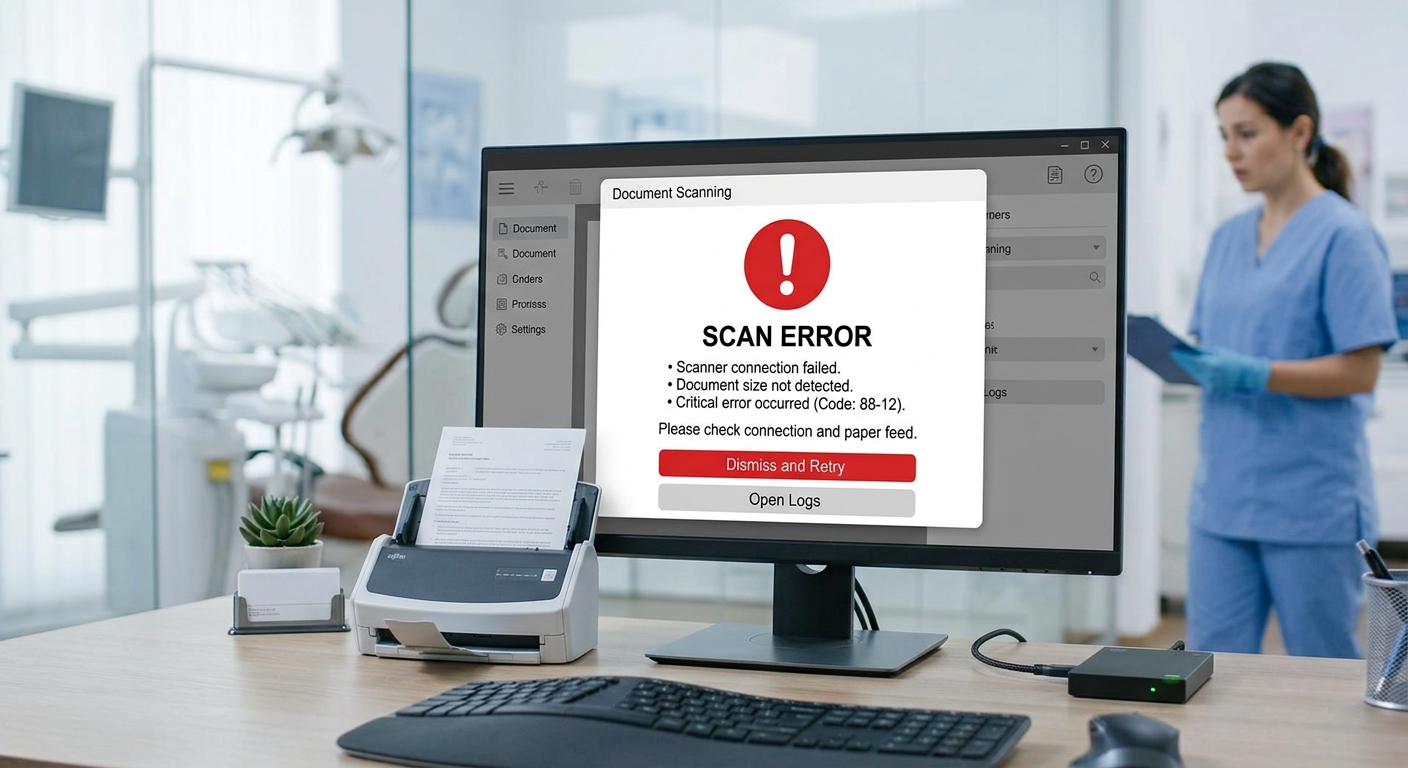
Common SmartDoc symptoms
- The scanner is not listed as an available source in SmartDoc.
- “Scanner cannot be found” when you try to scan.
- “The Eaglesoft SmartDoc Printer does not exist” when saving a report to SmartDoc.
- “Could not load the Eaglesoft printer interface” when saving a scanned document as PDF.
- Eaglesoft crashes when scanning on version 24.20 or later.
- A multi-page document feeds through, but only the first page previews.
Fix 1: Test the scanner outside Eaglesoft
- Scan a page using the scanner’s own software or the Windows Scan app.
- If that fails, the problem is the scanner or its driver, not Eaglesoft. Reinstall the manufacturer’s driver, restart the scanner and computer, and try again.
- If it works, move on to the Eaglesoft side.
Fix 2: Scanner not listed or cannot be found
- Check the scanner has a TWAIN driver. Patterson’s KB 6232 says SmartDoc needs a TWAIN-compliant scanner installed with the manufacturer’s drivers, and notes that many Fujitsu ScanSnap models do not include one.
- On Eaglesoft 24.20 and later, do not use WIA drivers. Patterson’s KB 44382 says WIA drivers will not work and can make Eaglesoft crash with SmartDoc.
- Restart the scanner and the computer.
- If your scanner has no TWAIN driver, scan to a file outside Eaglesoft and import it into SmartDoc, or replace the scanner with a tested model.
Fix 3: “SmartDoc Printer does not exist” or documents will not save
Ask IT if unsure: these steps change Windows printer settings and run a setup file from the Eaglesoft program folder. If your office does not normally make those changes, call your IT provider or Patterson support (800-475-5036).
Patterson’s KB 19560 covers reinstalling the SmartDoc printer:
- Right-click the Eaglesoft icon, choose Properties, then Open File Location.
- Run
setupdocmgr64.baton 64-bit Windows (orsetupdocmgr32.baton 32-bit). A command window opens and closes by itself. - Open Printers & Scanners and confirm “Eaglesoft SmartDoc” now appears.
- Open its Printer Properties, go to the Ports tab and select NULL | Local Port.
- On the Advanced tab, untick “Enable advanced printing features,” choose “Print directly to the printer,” and click Apply.