
Eaglesoft IT Support · Buffalo & Rochester

Eaglesoft support for the server, network and workstations it runs on.

Eaglesoft IT support for dental practices in Buffalo and Rochester. We look after your Eaglesoft database server, workstations, Messenger, imaging, and backups, and we work alongside Patterson support, who remain your contact for the Eaglesoft software itself.

  • Works alongside Patterson
  • Updates planned after hours
  • Backups test-restored

What We Look After

Everything Eaglesoft runs on, kept running.

We handle the server, workstations, network, and backups behind Eaglesoft, so your team opens the schedule every morning without surprises.

01

Database Server Kept Healthy

Services, disk space, and connectivity watched, not left to chance.

02

Messenger and Workstation Connections

Every operatory finds the server, every morning.

03

Updates Planned After Hours

Backup first, then the server, then each workstation.

04

Backups That Get Test-Restored

Database and images, onsite and encrypted offsite.

Common Calls

The Eaglesoft problems we fix most often.

Most Eaglesoft support calls fall into a handful of patterns. Knowing them is half the fix.

"Database server not found"

Usual cause

The database service on the server stopped, the server restarted for updates, or something on the network is blocking the connection.

"Could not find the Eaglesoft Messenger server"

Usual cause

The Messenger service isn't running, or a firewall or the wrong server name is stopping the workstation from reaching it.

Errors during an update or install

Usual cause

Permissions, a file in use, or Eaglesoft left open on another workstation.

Scanned documents not saving or opening

Usual cause

A path, permission, or scanner driver problem in the patient's document area.

One slow workstation

Usual cause

Nearly always that machine or its network connection, not Eaglesoft itself.

Backups that "succeed" but were never restored

What we find

A success message doesn't prove a backup works. We find these more often than we'd like.

Before you restart anything on the server

For anything that touches the database or the services on the server, call us or Patterson first. A wrong step there can turn a short outage into a long one.

(716) 463-5111

Who Does What

We handle the IT. Patterson handles Eaglesoft.

Patterson Dental supports the Eaglesoft software: program errors, licensing, data questions, and training. Everything Eaglesoft sits on is usually the practice's job to sort out, and that's where we come in.

When the front desk says "Eaglesoft is down"…

The cause is often outside Eaglesoft: the server rebooted overnight and a service didn't start, a workstation dropped off the network, a firewall rule changed, or the server's disk filled up. We fix those directly. When the problem really is in the software, we call Patterson with the error details, screenshots, and version numbers ready, and stay on the case until it's resolved.
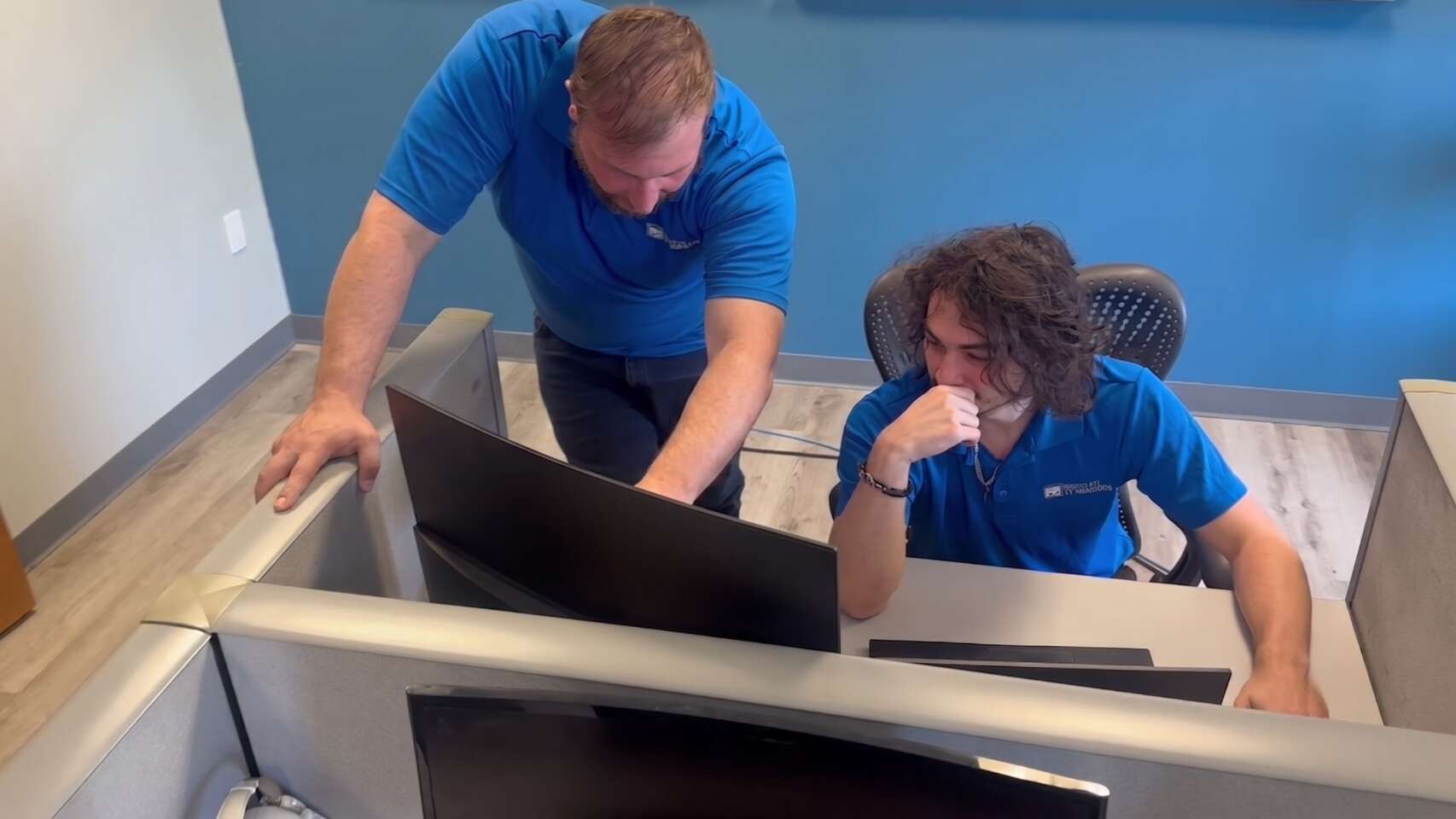
Two Buffalo IT Services technicians working through a dental office Eaglesoft issue together

Buffalo IT Services

We handle

Server and workstation hardware, Windows, network, firewall, printers, imaging drivers, backups, and security.

Both sides

We coordinate

Major updates, server replacements, and anything that needs both of us.

Patterson Dental

Patterson handles

Eaglesoft software errors, licensing, data corrections, and training.

Eaglesoft is one part of our wider dental IT support. We also support offices on Dentrix and Open Dental.
Database Server

The Eaglesoft database server is the heart of the office.

Eaglesoft keeps its data in a database that runs as a service on your server, and every workstation connects to that service over the network.

If the service stops, or a workstation can't reach the server, staff see errors like "database server not found" and nobody can open a patient record. We build and maintain the server so that happens as rarely as possible.

Server near the end of its life? Our dental server migration process moves Eaglesoft to new hardware after hours, with a rollback plan if anything doesn't check out.

Eaglesoft Server Built and maintained by Buffalo IT Services
Healthy
  • Sized to Patterson's current requirements

    For your version of Eaglesoft, checked each time rather than assumed.

    Checked
  • Solid-state storage in a redundant array

    With room for the database, images, and documents to grow.

    Redundant
  • Services monitored

    We know when the database service or Messenger stops, ideally before the morning schedule starts.

    Monitored
  • Fixed IP and correct name resolution

    Workstations always find the server after a reboot or a router change.

    Fixed
  • Firewall and antivirus set correctly

    Security software never blocks or slows the database connection.

    Configured
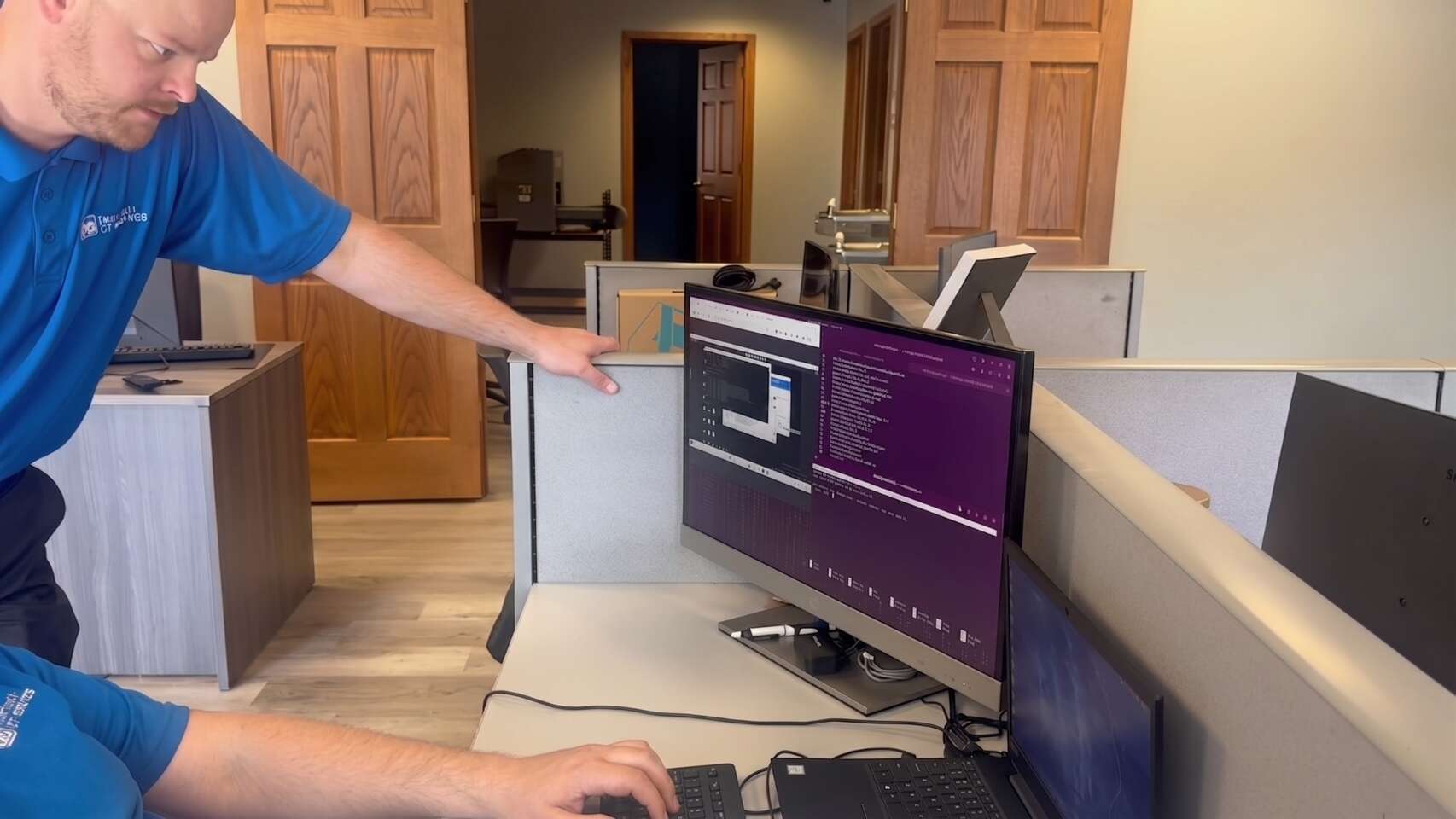
Buffalo IT Services technicians troubleshooting an Eaglesoft workstation connection

Workstations & Messenger

Workstations, Messenger and the connections between them.

Eaglesoft Messenger passes messages and notifications between workstations through the server.

When a workstation shows "could not find the Eaglesoft Messenger server," the cause is usually a service that didn't start, a firewall blocking the connection, or a workstation pointing at the wrong server name.

Every workstation, set up for Eaglesoft

  • Solid-state drives and enough memory, so charting and imaging don't lag.

  • Wired connections in operatories wherever possible, with Wi-Fi kept for tablets and laptops.

  • Windows updates scheduled outside clinical hours and checked afterward.

  • Antivirus exclusions set the way the vendor recommends.

  • Printers, signature pads, and card scanners installed with the right drivers on the machines that use them.

How we troubleshoot

We start where the problem is.

1
One workstation slow or dropping?

We test that machine and its cable before touching the server.

Every workstation affected?

We start at the server and the network switch.

Updates & Imaging

Eaglesoft updates and imaging, done in the right order.

Eaglesoft updates change the database, so the server and every workstation need to end up on the same version. Update errors are often caused by permissions, a file in use, or a workstation left open overnight. Here's how we run them.

  1. Step 01

    Review

    Check the release notes and system requirements for the new version.

  2. Step 02

    Back up

    Take a backup of the database and confirm it completed.

  3. Step 03

    Update the server

    Close Eaglesoft on every workstation and update the server after hours.

  4. Step 04

    Update & verify

    Update each workstation, then check the schedule, charting, Messenger, and imaging on each one.
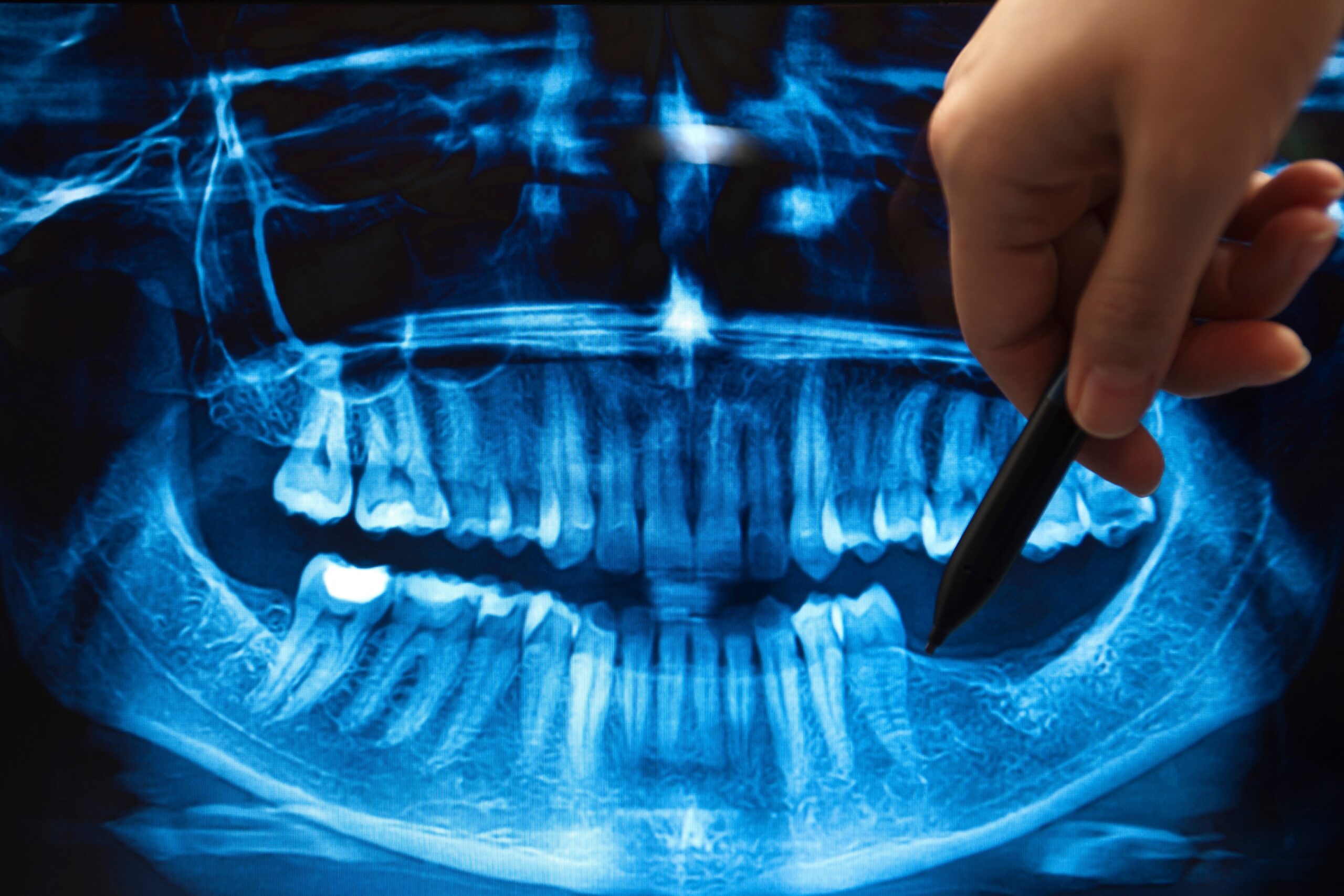
Panoramic dental X-ray reviewed on a digital imaging display

Imaging after every update

Where updates most often cause trouble.

Imaging devices depend on drivers and on the link between Eaglesoft and the imaging software. After an update, we test capture on every operatory, not just that Eaglesoft opens.

  • Sensors
  • Pano units
  • Intraoral cameras
  • Imaging software link
Dental imaging IT support

Backups

Eaglesoft backups you have actually restored.

A backup has to produce a consistent copy of the database and include the images and documents stored with it. Patterson documents the supported options, and we set your backups up to match.

Won't work

Copying the Eaglesoft data folder while the database is running.

What we set up

A supported method that captures a consistent database copy, plus images and documents.

From there, the same rules apply as with our healthcare data backups.

The backup routine

Four rules, every practice.

  1. A local copy

    For fast restores when something goes wrong.

  2. An encrypted offsite copy

    In case the office is lost or hit by ransomware.

  3. Failure alerts that come to us

    Not to a mailbox nobody reads.

  4. Scheduled test restores

    So we know the database opens and the images are there.

This routine doubles as evidence for your HIPAA risk assessment.

Common Questions

Eaglesoft IT support FAQ.

Quick answers to what Eaglesoft offices ask us most about servers, errors, and backups.

Eaglesoft down right now?

Call before restarting anything on the server. A wrong step can turn a short outage into a long one.

(716) 463-5111

No. Patterson remains your support for the Eaglesoft software. We look after the server, workstations, network, imaging hardware, and backups, and we work with Patterson when a problem needs both of us.

The workstation can't reach the Eaglesoft database on your server. Common causes are a stopped database service, a server that's off or rebooting, a network problem, or a firewall blocking the connection. Call us before restarting services on the server.

Usually the Messenger service on the server isn't running, or a firewall or wrong server name is stopping the workstation from reaching it. We check the service and the connection from the affected workstation.

At least daily, with an onsite and an encrypted offsite copy, and with test restores on a schedule. A backup you've never restored shouldn't be trusted.

Yes. We plan the move with Patterson, build the new server ahead of time, migrate the data after hours, test every workstation, and keep the old server available as a rollback until everything checks out.

Ready to see what we can do for your business?

Schedule a free remote or on-site IT consult. Tell us about your business and the services you need – response times are typically under three hours.