
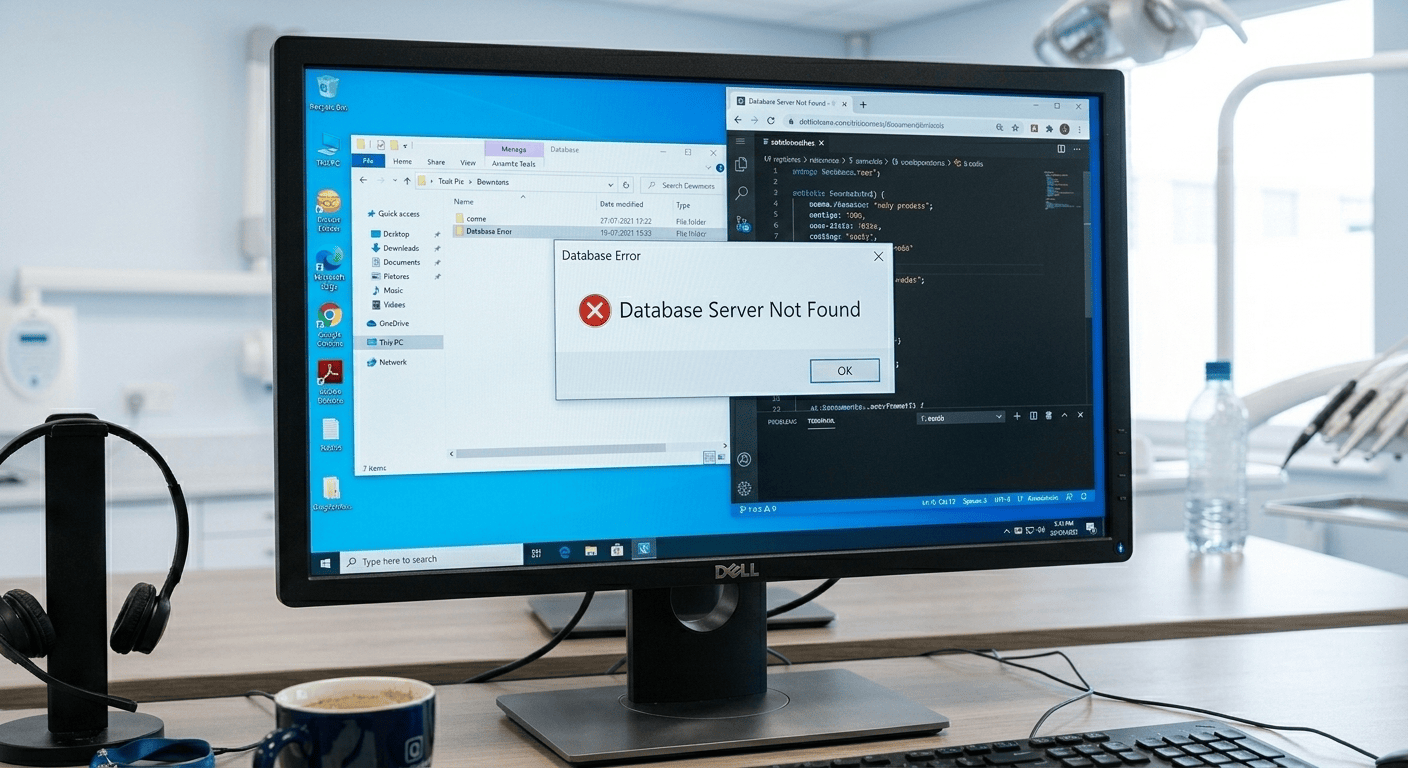
What the error means
Eaglesoft keeps its data in a database engine that runs on your server. Each workstation looks for that engine by name, and by default that name is EAGLESOFT. Patterson’s knowledge base explains that this error appears after the login screen when the workstation detects the server but cannot reach the database engine. It shows up most often on a newly set up workstation in an office that uses a custom server name.Common causes
- The database engine is stopped, often after the server restarted for Windows updates overnight.
- The workstation uses the wrong server name. Common on new or rebuilt workstations.
- The server’s IP address changed, and the workstation is still looking in the old place.
- A firewall or security product is blocking the connection.
- The workstation’s network card went to sleep to save power.
- A damaged workstation configuration file.
How to fix it
Before you start: steps 1 and 2 touch the server and its database engine. If you are not sure what you are looking at, call your IT provider or Patterson support (800-475-5036) first. Starting or stopping the engine while people are working can cause bigger problems.
If every workstation shows the error
- Check that the server is on and has finished starting up. Wait a few minutes after a reboot before opening Eaglesoft on workstations.
- Check that the Eaglesoft database engine is running on the server. If it is not, ask your IT provider or Patterson to start it, and to find out why it stopped.
- Close Eaglesoft on every workstation and reopen it once the server is confirmed running.
If only one workstation shows the error
- Compare the server name. On a workstation that works, open Technical Reference and note the Server Name in the database setup screen. Patterson’s KB 44919 says to apply the same name to the problem workstation.
- Restart Eaglesoft on the problem workstation and try again.
- Reset the workstation’s configuration file if it still fails. Patterson’s documented step is to rename
C:\Eaglesoft\Shared Files\Eaglesoft.Client.Configuration.datatoEaglesoft.Client.ConfigurationOLD.data. Check that the server name is correct first. - Point the workstation at the server’s IP address if name lookups are unreliable. Patterson’s KB 40200 shows where to enter
Host=and the server’s IP in Technical Reference. This only works if the server has a fixed IP address, so check with your IT provider. - Stop the network card from sleeping. In Device Manager, open the network adapter’s properties, go to Power Management, and untick “Allow the computer to turn off this device to save power.”
How to stop it happening again
- Give the server a fixed IP address and keep Eaglesoft’s settings consistent on every workstation.
- Schedule server reboots for updates at a time when the engine can restart before the morning.
- Monitor the database engine, so someone knows it stopped before the front desk does.
- Set the firewall and antivirus exclusions Patterson recommends.