
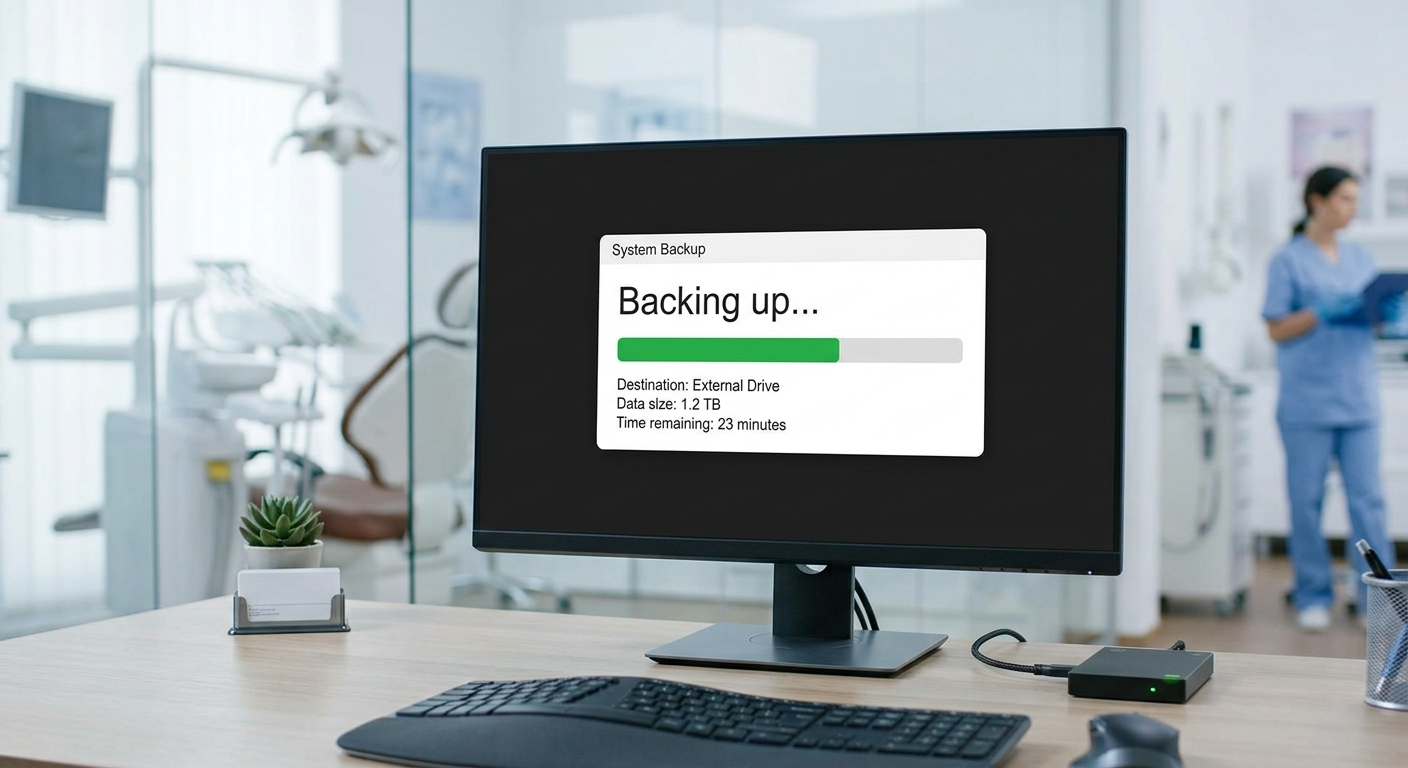
What to back up
Back up the whole Eaglesoft Data folder, not just the database file. On current versions it is atC:\Eaglesoft\Data by default, though some offices store it elsewhere. Patterson lists the database (PattersonPM.db) and log file (PattersonPM.log) along with configuration files and folders for images, documents, audio and other items that the database depends on. Missing any of these can leave you with patient records that point to images or documents you no longer have.
If your practice uses separate imaging software, back up its data too. Check with your imaging vendor where that is stored.
Why the database engine has to be stopped
While the Eaglesoft database engine is running, its files are open and changing. Copying them in that state can produce a backup that will not open. Patterson’s KB 206 says to make sure all users are logged out, stop the Eaglesoft server engine, copy the Data folder, and then restart the engine. KB 2031 adds that the Messenger Server must also be closed before a backup.How to run a manual backup
Warning: stopping and starting the database engine affects every workstation in the office. Do this only after hours, with everyone logged out, and preferably with your IT provider or Patterson support (800-475-5036) on hand the first time. If the engine does not restart afterwards, nobody can open Eaglesoft.
- Make sure everyone has logged out of Eaglesoft on every computer.
- On the server, stop the Eaglesoft server engine. The Stop Patterson Eaglesoft Server shortcut stops both the database engine and the Messenger Server.
- Copy the entire Eaglesoft Data folder to your backup destination.
- Check the copy finished without errors and is roughly the same size as the original.
- Restart the Eaglesoft server engine and confirm a workstation can log in.
How often, and how many copies
Patterson recommends daily backups on business days, end-of-month backups before month-end processing, and year-end backups kept for three years, using a rotation so several older versions are always available. It also says backups should be kept offsite or in a fire and waterproof safe. We would add one thing: at least one copy should be offsite and encrypted, somewhere ransomware on your office network cannot reach or delete.How to test the backup
Patterson recommends restoring a backup at least once a month. A useful test looks like this:- Restore the backup to a separate test location or test computer, never over your live data.
- Start Eaglesoft against the restored copy.
- Open a recent patient and confirm the latest appointments and transactions are there.
- Open an X-ray and a scanned document to confirm images and documents came back too.
- Write down the date, who tested it and the result. This is useful evidence for your HIPAA risk assessment.
Warning: never restore a test backup over the live Eaglesoft Data folder. Restores should be done by your IT provider or with Patterson support.