
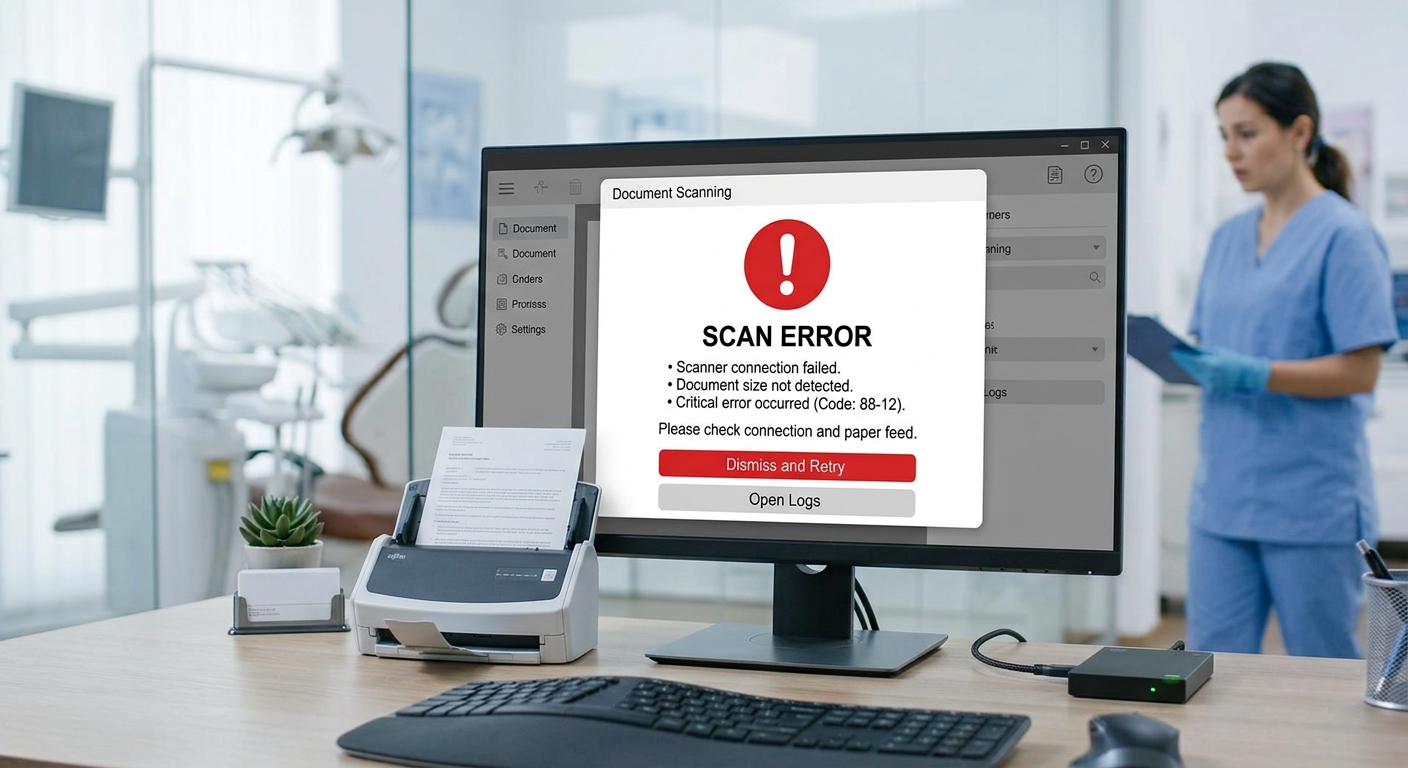
Eaglesoft SmartDoc Not Working: Causes and How to Fix It

Trusted by organizations across Buffalo, Rochester & nationwide
Short answer: Most SmartDoc problems come down to two things: the scanner, or the Eaglesoft SmartDoc printer. Patterson’s first rule is simple: if the scanner does not work outside Eaglesoft, it will not work inside Eaglesoft. So test the scanner with its own software first. If documents will not save to SmartDoc from a report or another program, the SmartDoc printer is usually missing or set to the wrong port, and reinstalling it fixes the problem.

Common SmartDoc symptoms

  • The scanner is not listed as an available source in SmartDoc.
  • “Scanner cannot be found” when you try to scan.
  • “The Eaglesoft SmartDoc Printer does not exist” when saving a report to SmartDoc.
  • “Could not load the Eaglesoft printer interface” when saving a scanned document as PDF.
  • Eaglesoft crashes when scanning on version 24.20 or later.
  • A multi-page document feeds through, but only the first page previews.

Fix 1: Test the scanner outside Eaglesoft

  1. Scan a page using the scanner’s own software or the Windows Scan app.
  2. If that fails, the problem is the scanner or its driver, not Eaglesoft. Reinstall the manufacturer’s driver, restart the scanner and computer, and try again.
  3. If it works, move on to the Eaglesoft side.

Fix 2: Scanner not listed or cannot be found

  1. Check the scanner has a TWAIN driver. Patterson’s KB 6232 says SmartDoc needs a TWAIN-compliant scanner installed with the manufacturer’s drivers, and notes that many Fujitsu ScanSnap models do not include one.
  2. On Eaglesoft 24.20 and later, do not use WIA drivers. Patterson’s KB 44382 says WIA drivers will not work and can make Eaglesoft crash with SmartDoc.
  3. Restart the scanner and the computer.
  4. If your scanner has no TWAIN driver, scan to a file outside Eaglesoft and import it into SmartDoc, or replace the scanner with a tested model.

Fix 3: “SmartDoc Printer does not exist” or documents will not save

Ask IT if unsure: these steps change Windows printer settings and run a setup file from the Eaglesoft program folder. If your office does not normally make those changes, call your IT provider or Patterson support (800-475-5036).
Patterson’s KB 19560 covers reinstalling the SmartDoc printer:
  1. Right-click the Eaglesoft icon, choose Properties, then Open File Location.
  2. Run setupdocmgr64.bat on 64-bit Windows (or setupdocmgr32.bat on 32-bit). A command window opens and closes by itself.
  3. Open Printers & Scanners and confirm “Eaglesoft SmartDoc” now appears.
  4. Open its Printer Properties, go to the Ports tab and select NULL | Local Port.
  5. On the Advanced tab, untick “Enable advanced printing features,” choose “Print directly to the printer,” and click Apply.

Fix 4: “Could not load the Eaglesoft printer interface”

Patterson’s KB 34386 links this error to Windows permissions on the Eaglesoft folder and registry. Changing those is an IT task, so call your IT provider or Patterson rather than changing permissions yourself.

Fix 5: Only the first page of a multi-page scan appears

Patterson’s KB 6232 suggests selecting Get Preview again after the pages feed through. If that does not help, the scanner may not be fully compatible with SmartDoc.

Frequently asked questions

Why does the scanner work in Windows but not in Eaglesoft?

Usually because it only has a WIA driver, or no TWAIN driver at all. SmartDoc needs TWAIN, especially on version 24.20 and later.

What scanner should we buy for SmartDoc?

One with a TWAIN driver from the manufacturer, ideally a model Patterson lists as tested. Check before you buy.

Will reinstalling the SmartDoc printer delete documents?

No. The SmartDoc printer is how documents are sent to SmartDoc. Existing documents are stored with your Eaglesoft data on the server.

Still down? Call (716) 463-5111

If SmartDoc still will not scan or save, call Buffalo IT Services at (716) 463-5111. We set up scanners, drivers and permissions for Eaglesoft offices. See our Eaglesoft IT support page.

Ready to see what we can do for your business?

Schedule a free remote or on-site IT consult. Tell us about your business and the services you need — response times are typically under three hours.

Ready to see what we can do for your business?

Schedule a free remote or on-site IT consult. Tell us about your business and the services you need – response times are typically under three hours.