
Dental Imaging Support · Buffalo & Rochester

Dental imaging software support, from sensor to server.

Intraoral sensors, pano and CBCT workstations, imaging bridges, drivers, and the storage and backup of every image, for practices in Buffalo and Rochester. When a sensor won't capture with a patient in the chair, you need someone who knows where to look.

  • We call the right vendor for you
  • Bridges checked after every update
  • Images backed up & test-restored

What We Support

Every link in your imaging chain, looked after.

From the sensor in the operatory to the image on the server, we keep every piece working together so captures land on the right patient and stay protected.

01

Sensors and Intraoral Cameras

Driver, USB, and capture problems fixed.

02

Pano and CBCT Workstations

Built for large 3D volumes, not office paperwork.

03

Imaging Bridges

The right patient opens from your practice software.

04

Image Storage and Backup

Years of X-rays and scans, protected and restorable.

Who To Call

Imaging vendor, equipment dealer or IT? Usually all three.

Imaging problems are confusing because three different parties each own a piece. The imaging software company supports its program. The equipment dealer who sold and installed the sensor, pano or CBCT unit handles the hardware and its warranty. And the computers, network, storage and backups that all of it runs on usually fall to the practice’s IT provider.

When a sensor stops working with a patient waiting, nobody on your team should have to work out which of the three to call. That is our job. We start with what is most often at fault, the computer and its connection, and fix it if it is ours. If the evidence points to the imaging software or the device itself, we contact the right vendor with the details they will ask for: software version, driver version, Windows version, what changed recently and what we have already ruled out.

That saves time on every call, and it avoids the loop where the dealer blames the computer, the software company blames the dealer, and the practice waits in the middle. We keep notes on every imaging system we support, including install dates, driver versions and vendor contacts, so the next call starts from the facts.

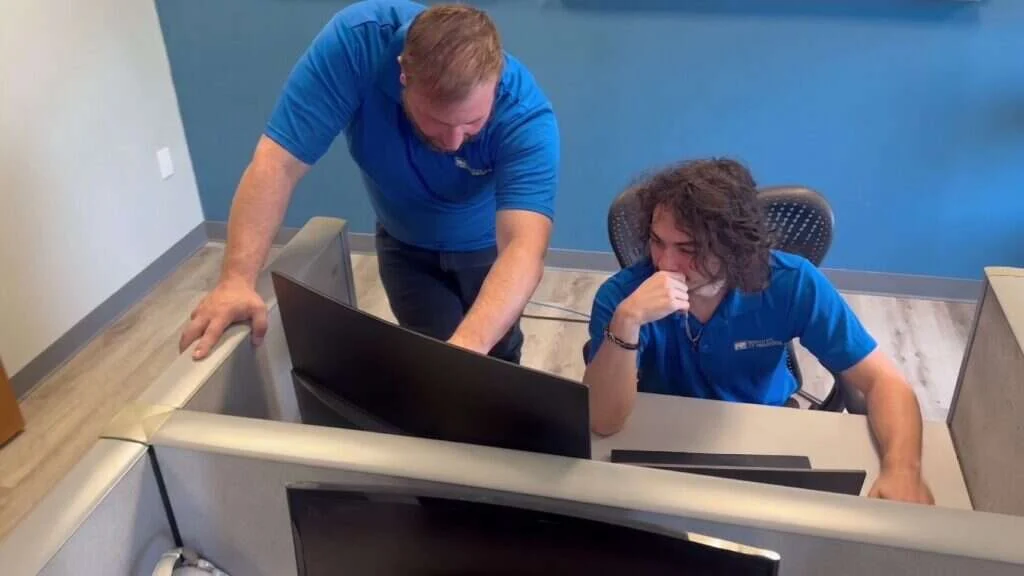
Two Buffalo IT Services technicians working through a client issue together in the office

Sensors

When the sensor will not capture.

Intraoral sensors fail in predictable ways. When one stops capturing, we work through the likely causes in order, starting with what's most often at fault.

Most failures aren't the sensor. Checking in this order saves you an unnecessary repair or replacement.

  1. 01

    USB power and ports

    Windows power saving can switch off USB ports, and some sensors don't wake up afterward. Front-panel ports, unpowered hubs, and long extension cables cause dropouts too.

    Our fix: USB power saving disabled on imaging machines, with sensors on rear ports or manufacturer-supported powered hubs.

  2. 02

    Drivers

    A Windows feature update can replace or disable a sensor driver.

    Our fix: We keep the driver version the imaging vendor supports, not just the newest one Windows offers.

  3. 03

    The imaging software

    If the acquisition agent or service isn't running, the software can't see the sensor, even though Windows can.

  4. 04

    The bridge

    If the practice software opens the wrong patient, or none, the image may be captured but filed in the wrong place.

  5. Last suspect

    The sensor or its cable

    Only when everything above checks out do we suspect the hardware, and then we help you work with the manufacturer on a repair or replacement.

Pano & CBCT

Pano and CBCT workstations built for 3D.

A cone beam CT scan produces a large 3D volume, and the workstation that displays it needs much more than a standard office PC. Imaging vendors publish specific requirements. We build to them and keep a record, so a replacement can be rebuilt the same way.
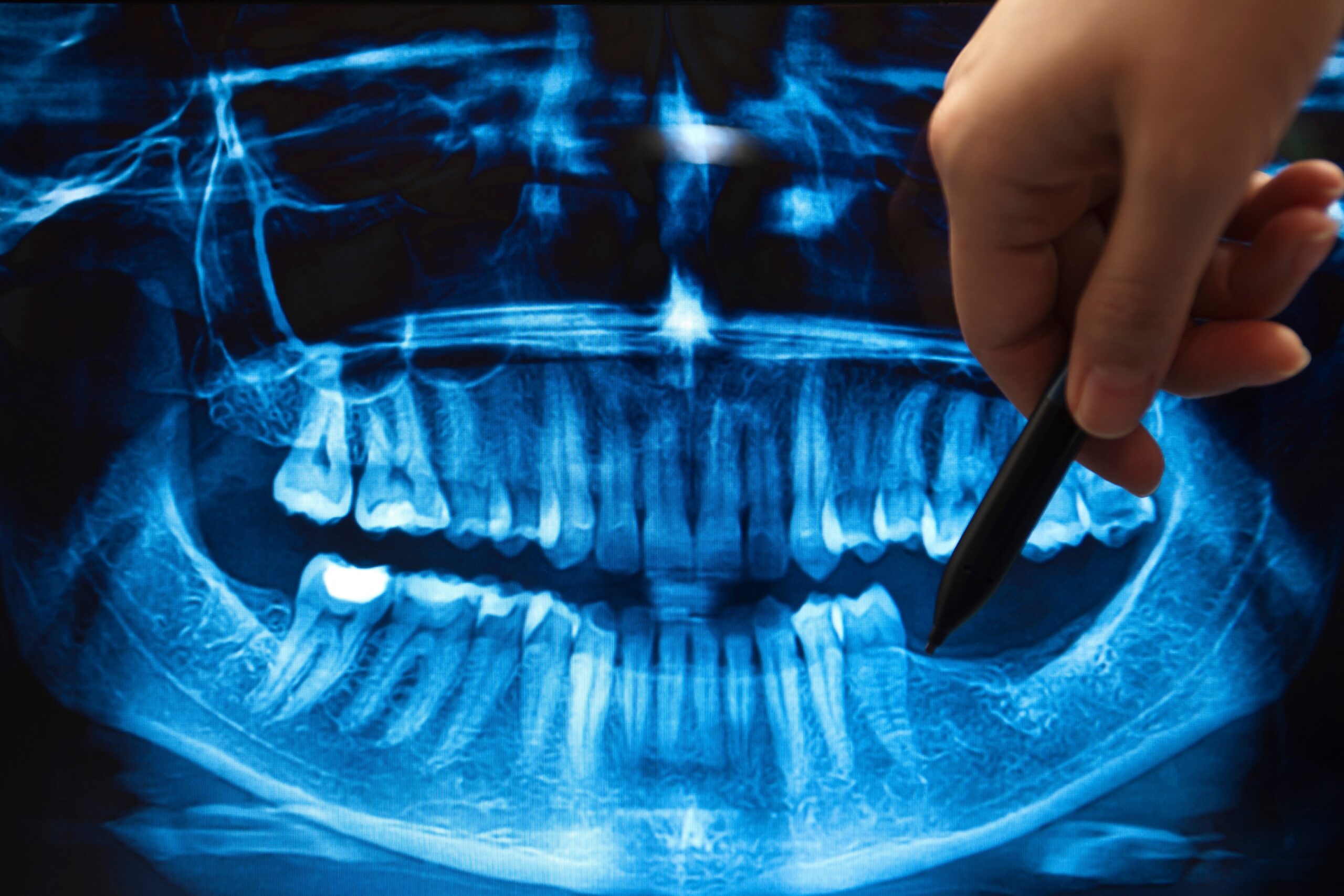
Panoramic dental X-ray reviewed on a CBCT imaging workstation
Workstation build record Built to the imaging vendor's spec
  • Graphics cardVendor spec
  • MemoryVendor minimum
  • Windows versionVendor-supported
  • Rebuild recordOn file

For pano and CBCT units, we also look at:

Network link

Between the unit, acquisition PC, and server, so large scans don't crawl across an old switch.

Scan storage

Where scans are stored, and whether the server has room for years of 3D data.

Viewer workstations

Which other machines need a viewer, and whether they meet its requirements.

Held-back updates

Windows updates paused on acquisition machines until the imaging vendor supports them.

Already supported

Sirona equipment Sidexis software 2D & 3D imaging
Using a different system? Call us

Bridges

Imaging bridges that open the right patient.

A bridge links your practice management software to the imaging software. Click the imaging button in Dentrix, Eaglesoft, or Open Dental, and the imaging program should open on the same patient, ready to capture.
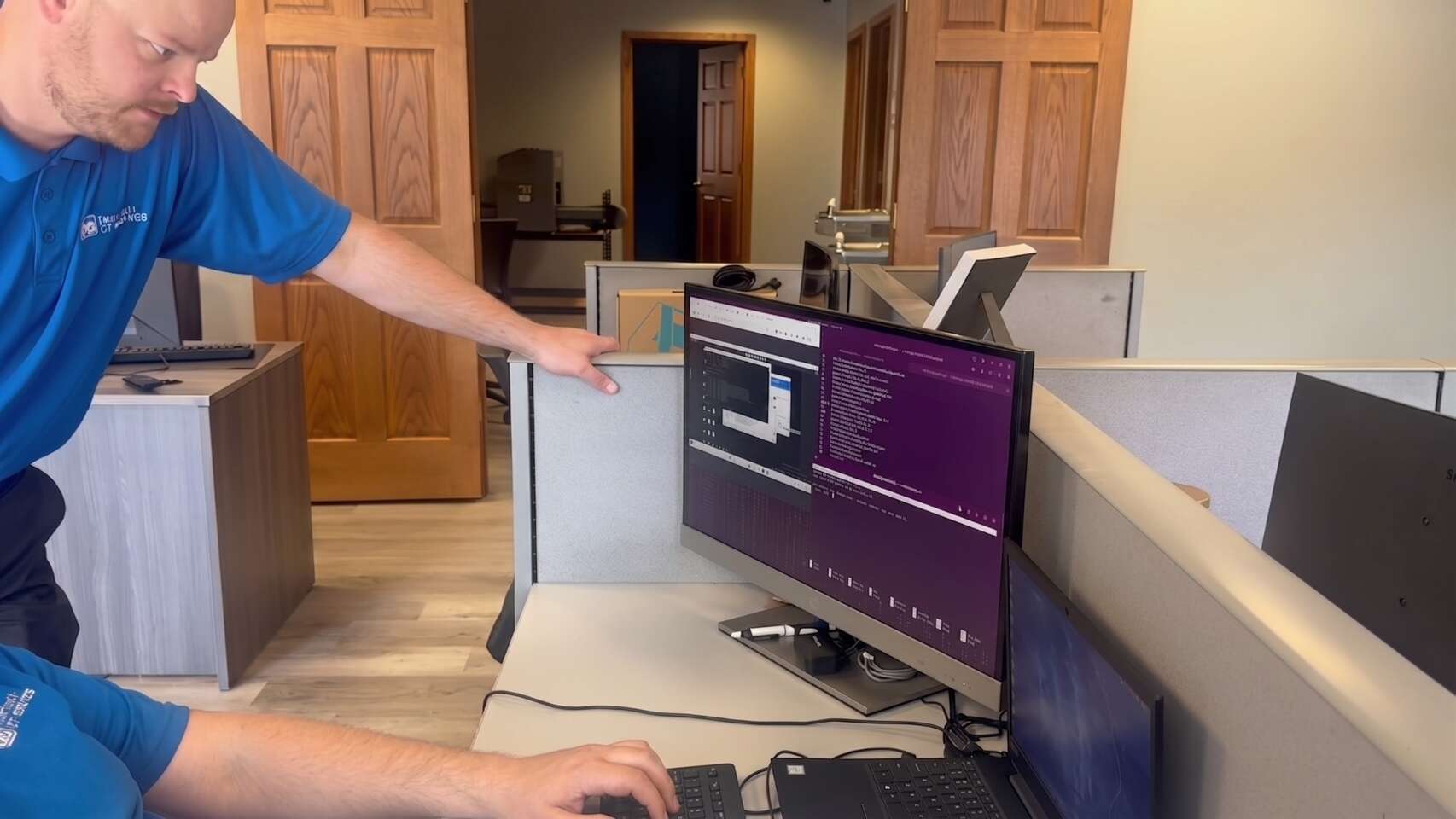
Buffalo IT Services technicians checking imaging bridge settings on a practice workstation

Why bridges break

01

Practice software updated

The update resets the bridge settings.

02

Imaging software updated

Its path or version changes, and the bridge no longer points to it.

03

Workstation replaced

The bridge was never set up on the new machine.

The result: staff search for the patient by hand in the imaging program, which is slow, and it's how images end up filed under the wrong person.
How we keep bridges working

  • Every bridge's settings documented
  • Checked after updates on both sides
  • Included in every new workstation build

Storage & Backup

Storing and backing up every image.

Images are part of the patient record, and in most offices they take up far more space than the practice database. CBCT volumes in particular grow quickly. That affects three things.

Server storage

We plan capacity for years of growth, on redundant solid-state or enterprise drives, and alert you before space runs low. A full disk is one of the most common causes of imaging failures.

Backups

Image folders belong in the backup alongside the database.

Onsite copy for fast restores Encrypted offsite copy Copies only what changed

Restores

We test restores of images as well as the database, because a database that points to missing images isn't a full recovery.

This follows the same approach as our healthcare data backups service, and it gives you documentation for your HIPAA risk assessment.

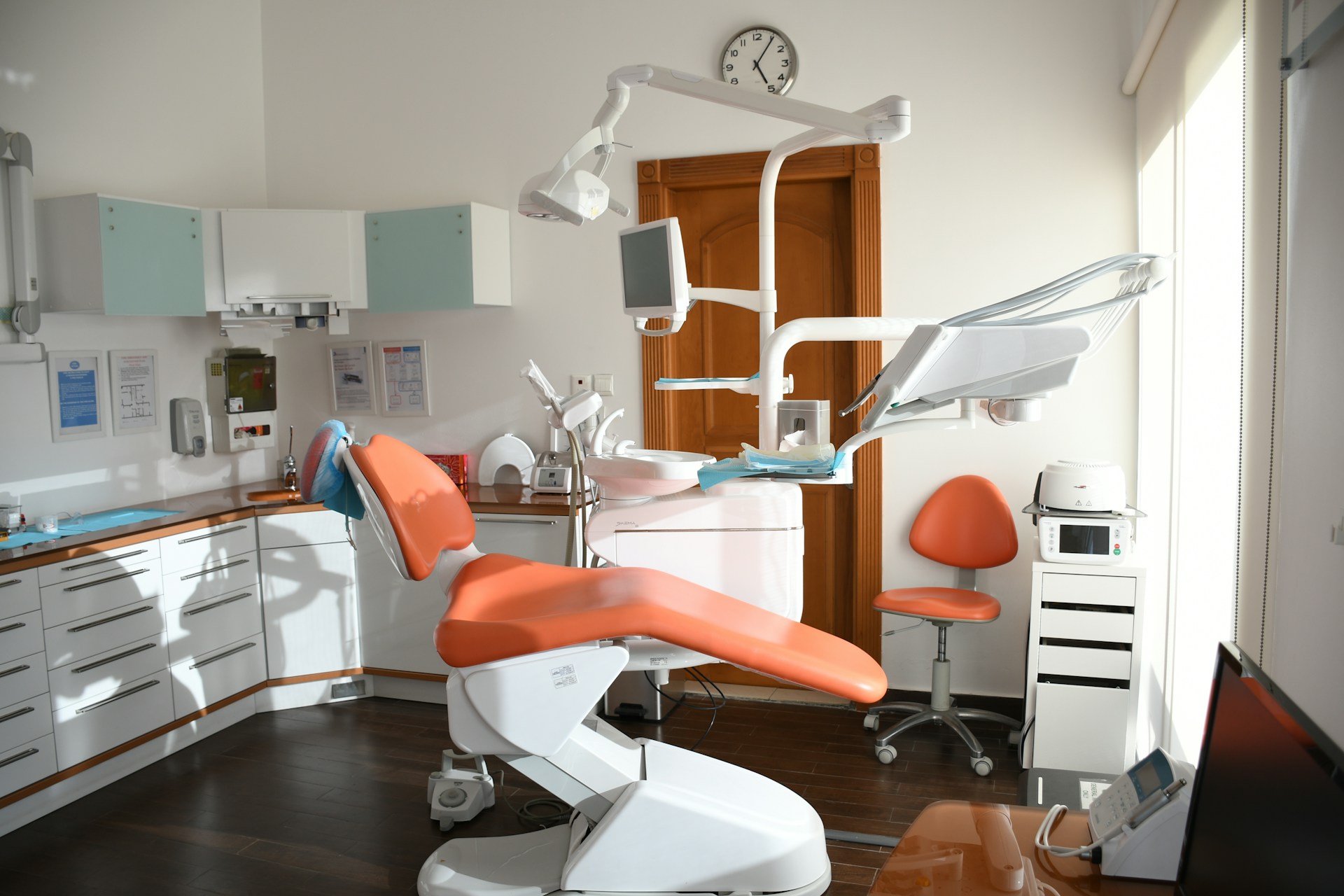
Modern dental operatory ready for new imaging equipment installation

Ready before the installer arrives

  • Workstation that meets requirements
  • Network drop where the unit goes
  • Storage space on the server
  • Bridge to your practice software
  • Backup plan for the new images

New Equipment

Adding new imaging equipment without the scramble.

New imaging equipment usually arrives with an installer from the equipment dealer, who sets up the unit itself. Everything around it still needs to be ready on the day.

  1. Before

    We prep with the dealer

    So every piece around the unit is in place ahead of install day.

  2. Install day

    The dealer sets up the unit

    With the workstation, network, and bridge already waiting.

  3. After

    We verify everything

    Images land in the right place and show up in backups.

If imaging is part of a buildout or move, our new dental office IT setup service covers the whole office, and our dental IT support covers it day to day.

Common Questions

Dental imaging support FAQ.

Quick answers to what practices ask us most about sensors, CBCT workstations, updates, and image backups.

Sensor won't capture?

Call us first. We'll find the cause and contact the right vendor for you.

(716) 463-5111

Usually because of the computer: a different driver version, USB power saving, a front-panel or hub connection, or the imaging software's acquisition service not running on that machine.

Security updates, yes. Major Windows feature updates should wait until the imaging vendor supports them, because they can replace drivers. We manage that schedule for you.

Yes. Vendors publish specific requirements, often including a particular graphics card and more memory than a normal PC. We build to those requirements.

They should be. Images are often stored in a separate folder from the practice database. We make sure both are backed up and test that both restore.

We support Sirona equipment and Sidexis software, along with general 2D and 3D imaging. Call us to talk about your specific system.

Ready to see what we can do for your business?

Schedule a free remote or on-site IT consult. Tell us about your business and the services you need – response times are typically under three hours.